
🎨 Style customization
Access this feature through the icon
Make any website easier to read and use by adjusting its style on the fly. Perfect for dark rooms, long articles, or cluttered pages.
✨ What you can do
- 🔤 Increase line-height and font size for readability
- 🧹 Reduce blank space, blocking popups, and blur overlays when they get in the way
- 🌈 Apply greyscale for less stimulation and better sleep
- 🧭 Combine global styling, site presets, and CSS Editor for finer control
🧩 What's in the panel
Inside the “Change style” panel, you’ll see these main controls:
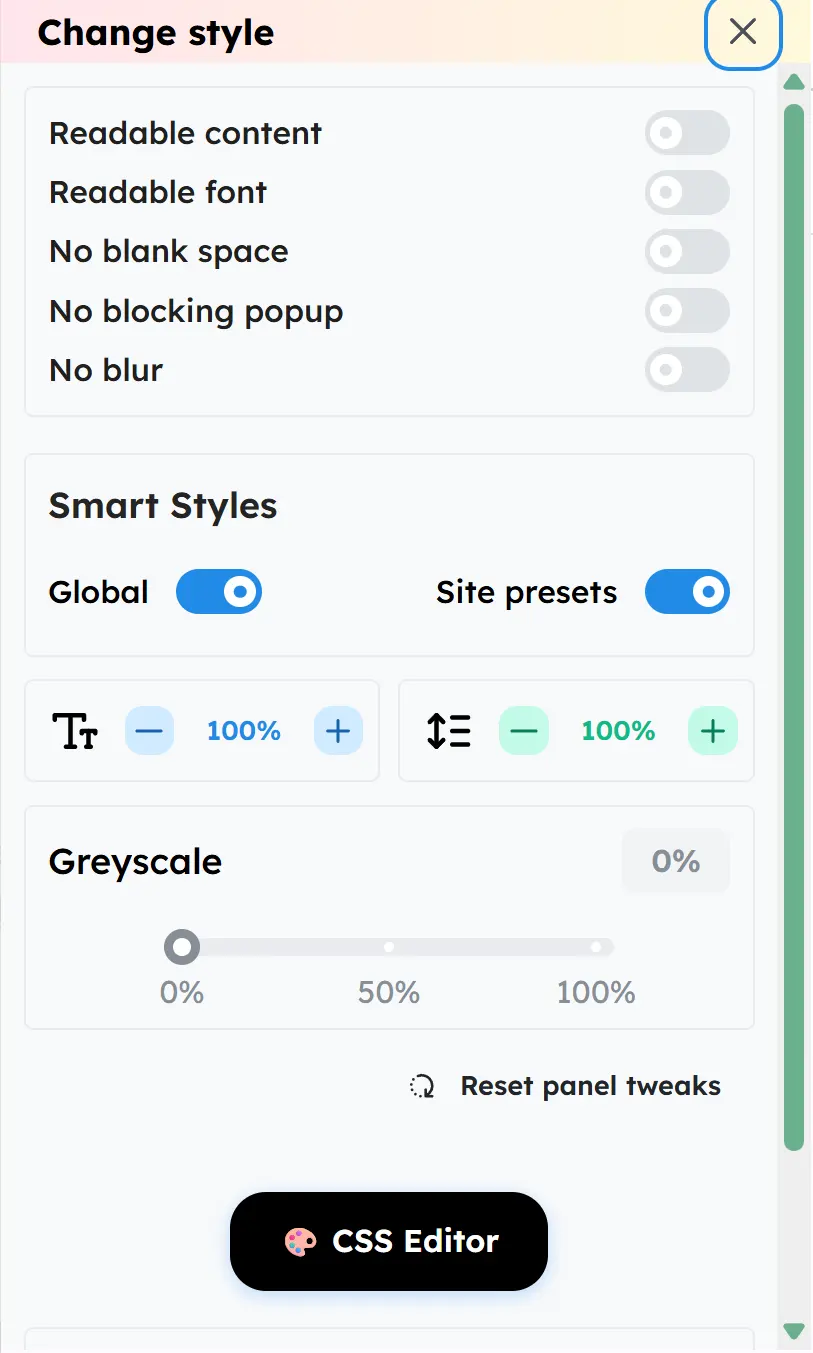
- ✅ Readability toggles
- “Readable content”: emphasize the main content and make pages easier to read
- “Readable font”: switch to a more readable font
- “Dark mode”: switch the current page to a darker theme for night reading
- “No blank space”: tighten oversized whitespace for a denser layout
- “No blocking popup”: try to remove popups that cover the page content
- “No blur”: remove blur overlays so content stays visible
- 🌍 Smart Styles
- “Global”: apply your recommended style across all websites
- “Site presets”: keep a preset for the current site, useful for websites you visit often
- 🔧 Quick adjustments
- Use the text-size minus and plus buttons to change the font percentage
- Use the second minus and plus buttons to adjust spacing and reading density
- 🎚️ Greyscale
- “Greyscale” supports continuous adjustment from 0% to 100%
- ♻️ Quick reset
- “Reset panel tweaks” reverts the tweaks you made in the panel
- 🎨 Advanced control
- “CSS Editor” lets you continue with custom CSS when you want deeper styling changes
🛠️ How to use
- Tap the 🦜 Parrot button (bottom‑right)
- Tap the 🎨 button to open the “Change style” panel
- Start with the top readability toggles and see whether the page becomes easier to use right away
- Turn on “Global” or “Site presets” depending on whether you want the effect everywhere or only on the current site
- Fine-tune the result with dark mode, text size, spacing, and the “Greyscale” slider
- Open “CSS Editor” if you want deeper control
💡 Tips
- Works great with Element Eraser and GIF Pause for a clean reading view
- Combine with Page Minimap to navigate long articles quickly
- If you don’t like the current adjustments, tap “Reset panel tweaks” first
- If a site breaks, tap Reload to restore the original style