
🎯 Side Panel
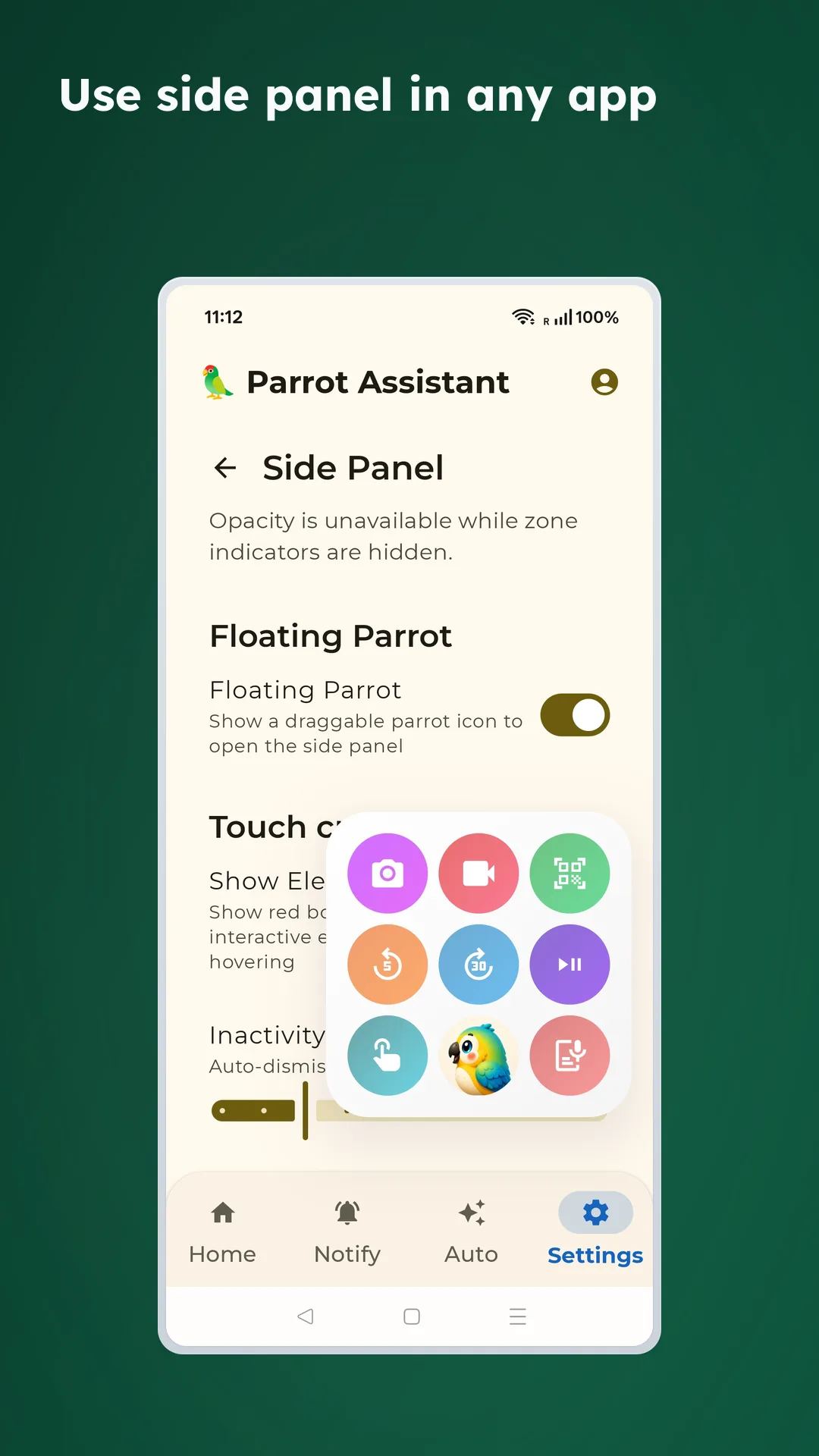
The side panel is useful for one simple reason: you can pull out your most-used tools without leaving the app you are already in.
👆 How to use
- Swipe inward from the configured screen edge
- Hover over a button in the grid
- Release to trigger the selected action
✨ Why people like it
- Smart anti-accidental touch: Only triggers when swiping inward from the edge
- One-hand operation: Swipe, hover, release
- Auto-hide: Automatically hides after a short idle period
- Gentle retouch window: Briefly lets you adjust before an accidental trigger becomes final
- Real-time preview: Shows the current button while you are hovering
- Great on large phones: Handy when reaching across the screen is annoying
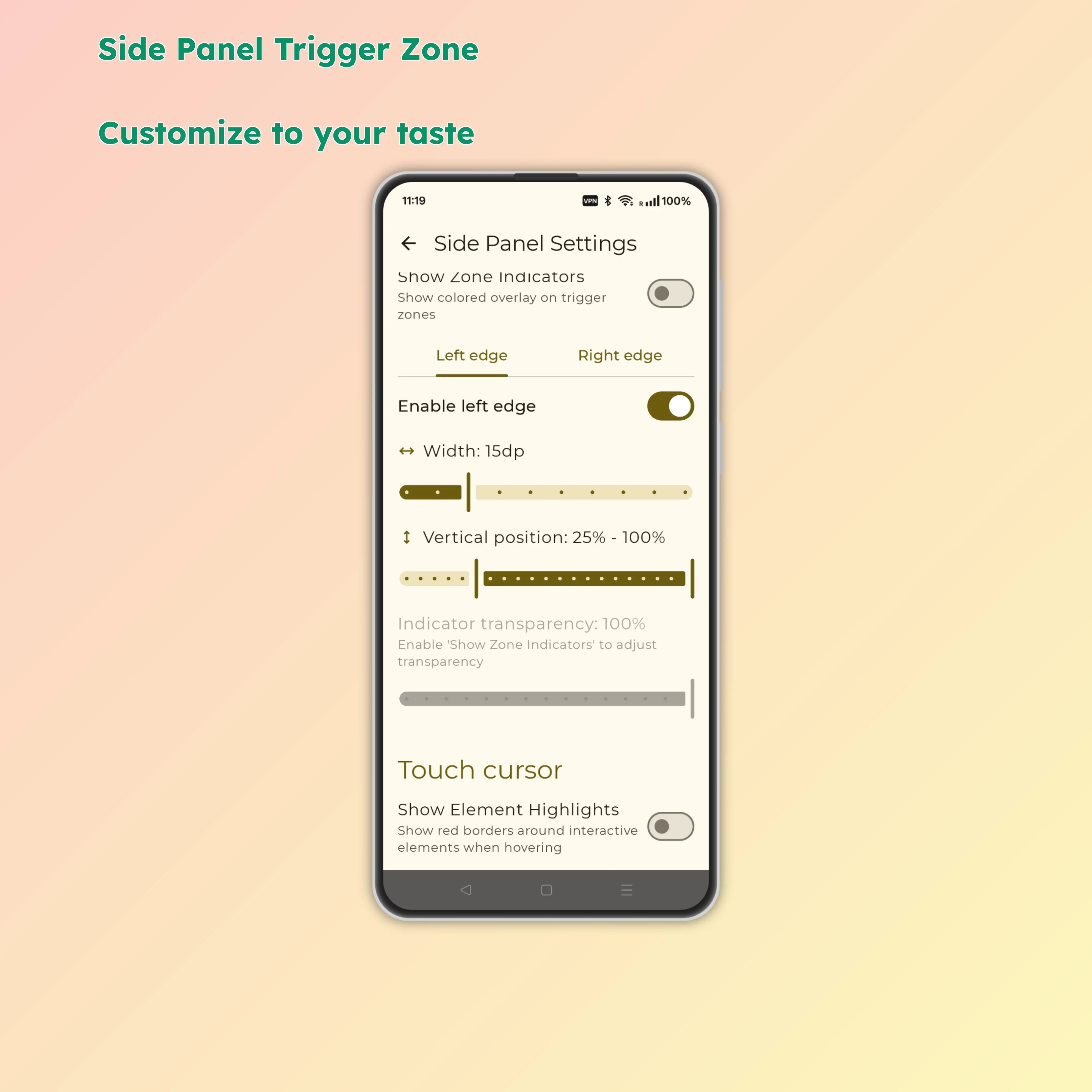
⚙️ Adjust the trigger area first
- Trigger edge: Left / Right / Top / Bottom
- Zone height: Adjust the length of the trigger area
- Zone position: Configure where on the edge the trigger activates
- Transparency: Control panel and button opacity
- Edge indicator: Show or hide a persistent line marking the trigger zone
- Floating Parrot: Optional draggable launcher for people who prefer a visible entry point
🧰 What you can do from here
📷 Row 1: Camera and scanning
- Camera: Quick photo capture
- Video: Quick video capture
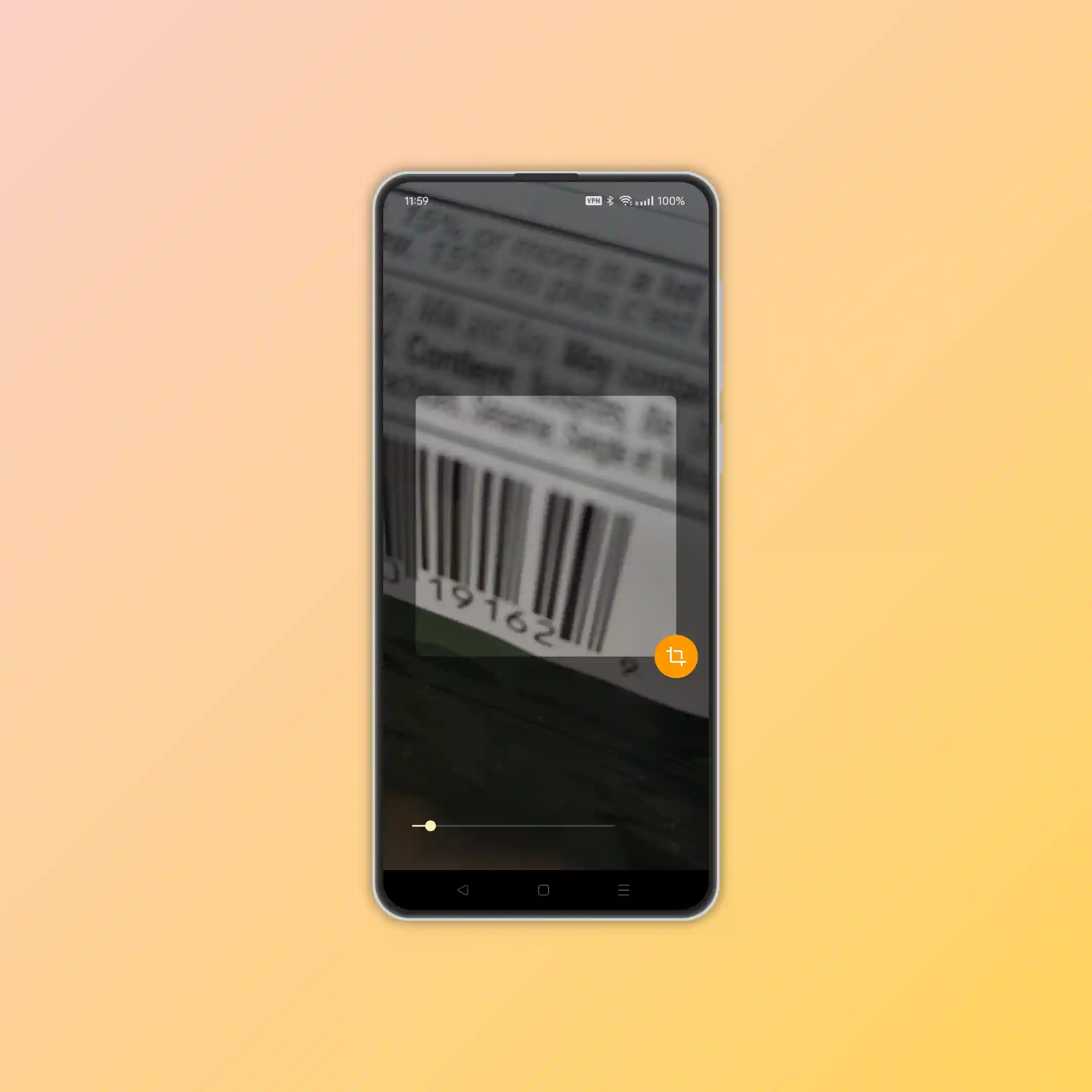
🔎 QR and barcode scanner
If you scan QR codes often, this is one of the quickest ways to do it.
- Auto-detects QR codes and barcodes
- Opens URLs directly when the code is a link
- Falls back to web search when scanned text is not a URL
- Works in portrait and landscape
- Keeps the flow simple when you just want to scan something quickly
Great for:
- Shipping labels and tracking codes
- Mobile payment codes
- Website QR codes
- App-sharing codes
🎵 Row 2: Media controls
- Rewind: Skip back 10 seconds
- Fast forward: Jump ahead 10 seconds
- Play / Pause: Control current playback
- Open now playing app: Hover long enough on the play or pause button to jump into the current media app
🖐️ Row 3: Screen operations
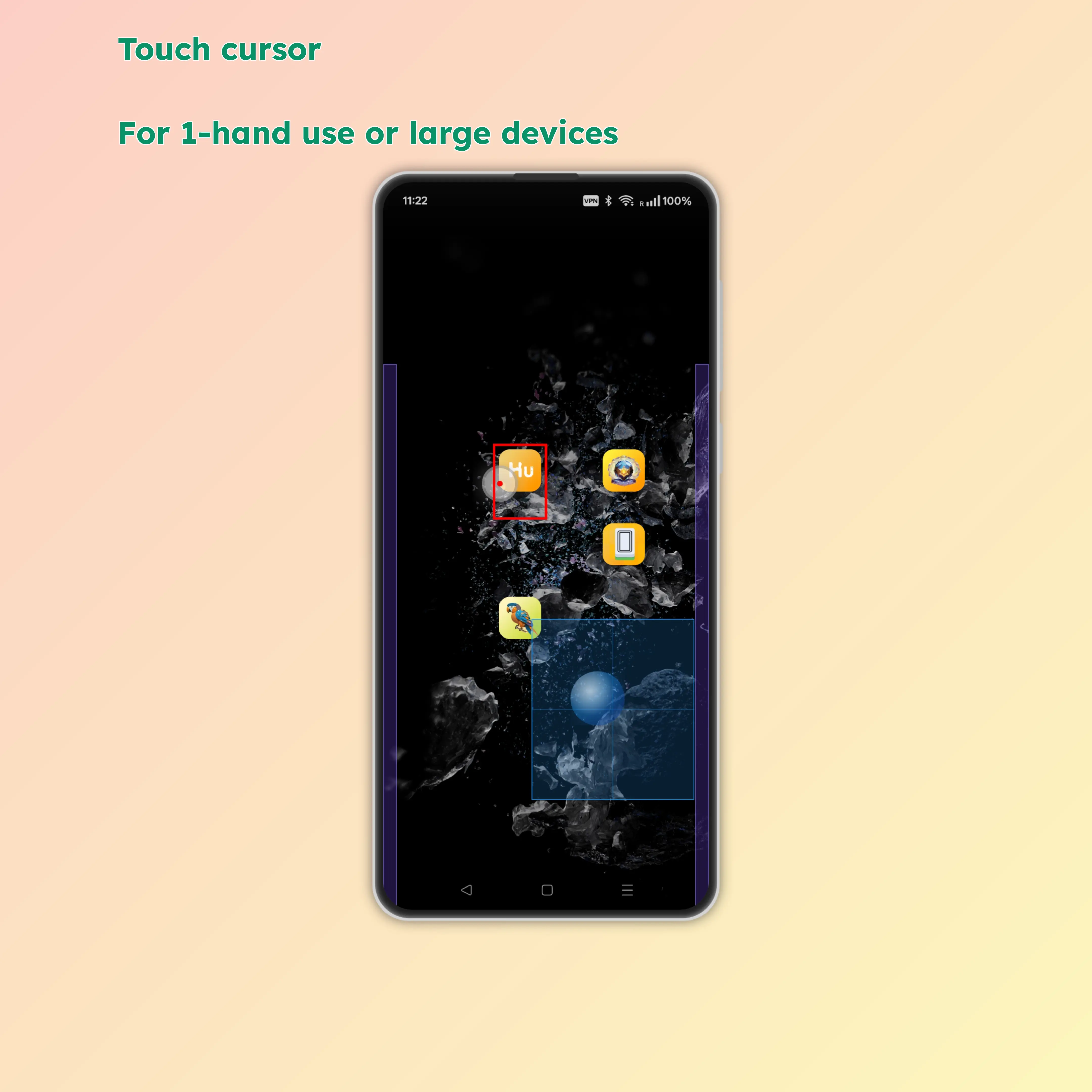
- Touch cursor: Highlight and tap interactive elements more precisely
- AI assistant: Trigger voice commands and tool-based actions
- Voice input: Start voice typing without manually switching flows
🔐 Accessibility requirement
The side panel needs Android accessibility permission so it can:
- Detect the edge gesture reliably
- Draw the floating overlay above other apps
- Interact with visible UI when touch cursor or assistant actions need it
❓ Common questions
The side panel does not respond
- Confirm accessibility service is enabled
- Make sure you are swiping from the actual trigger edge
- Check whether another app is already using the same edge gesture
Touch cursor clicks are not registering
- Verify accessibility permissions are granted
- Try clicking on highlighted interactive areas first
- Some system UI zones still have Android-imposed restrictions